WASMS · Appointing
Install. Connect. Make it yours.
Your Appointing installation and use guide.
A guided look inside.
Six short steps through the actual WASMS interface. English on-screen captions, a full transcript and demonstration data. No narration.
1 minute · English captionsShared plugin screens vary by platform. Native installation steps remain in the written guide. No messages were sent while creating this walkthrough.
English transcript & chapters
Open the Appointing Module and choose the intended business. Confirm its category and time zone before adding services or reservations.
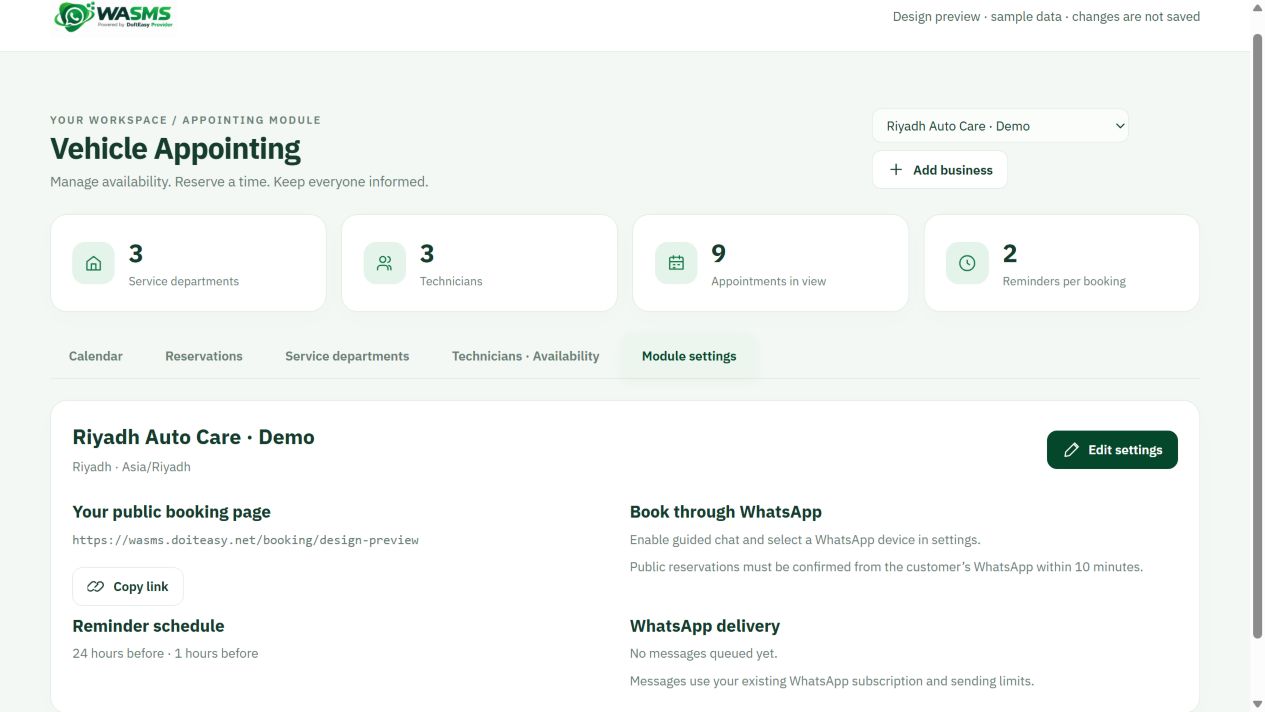
Set the business terminology, public booking details, connected WhatsApp device and reminder schedule. These demonstration settings do not send messages.
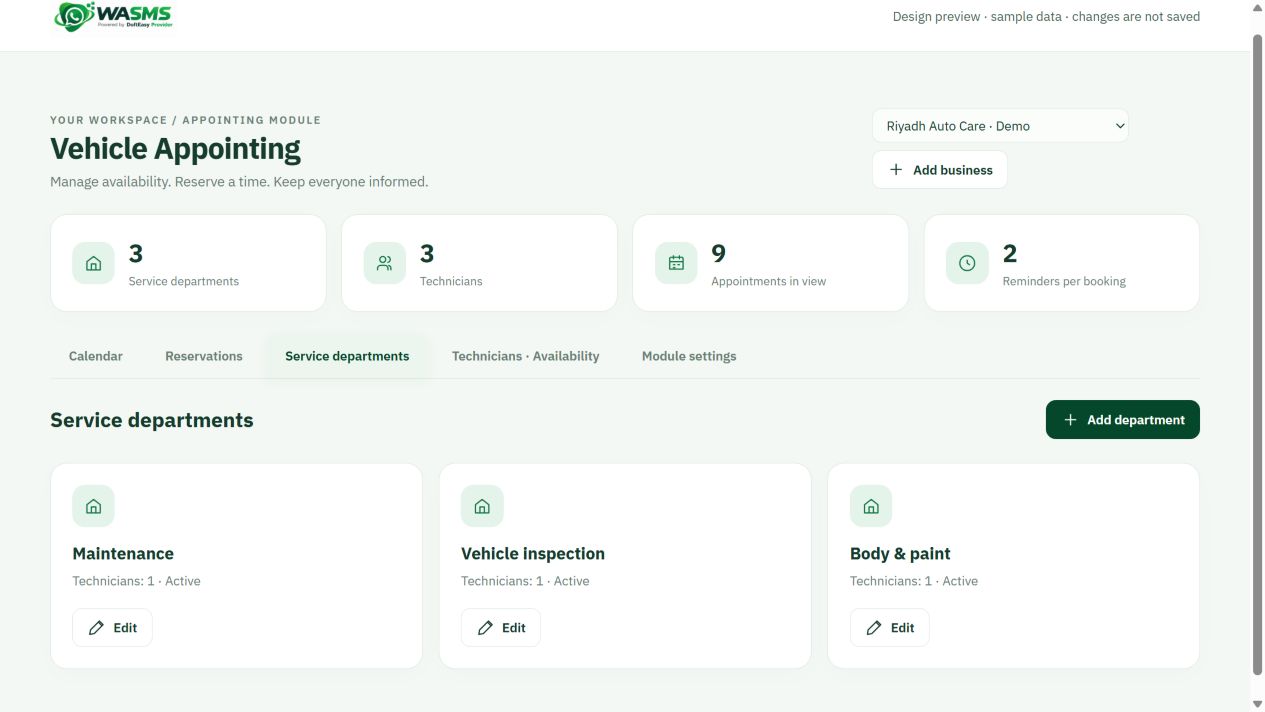
Create the departments or services your business offers. Use the category labels that fit your clinic, vehicle service, salon or custom operation.
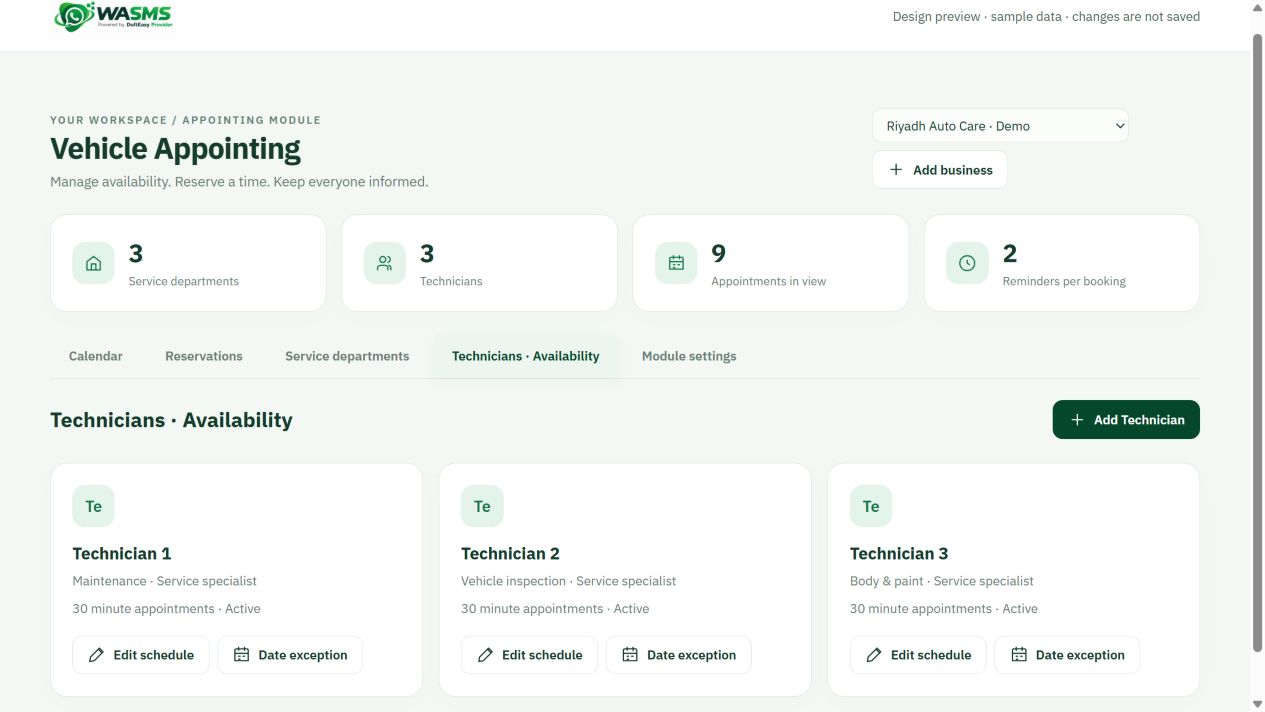
Add specialists and confirm their available hours, time zone and booking duration. Test overlapping reservations before opening the booking page.
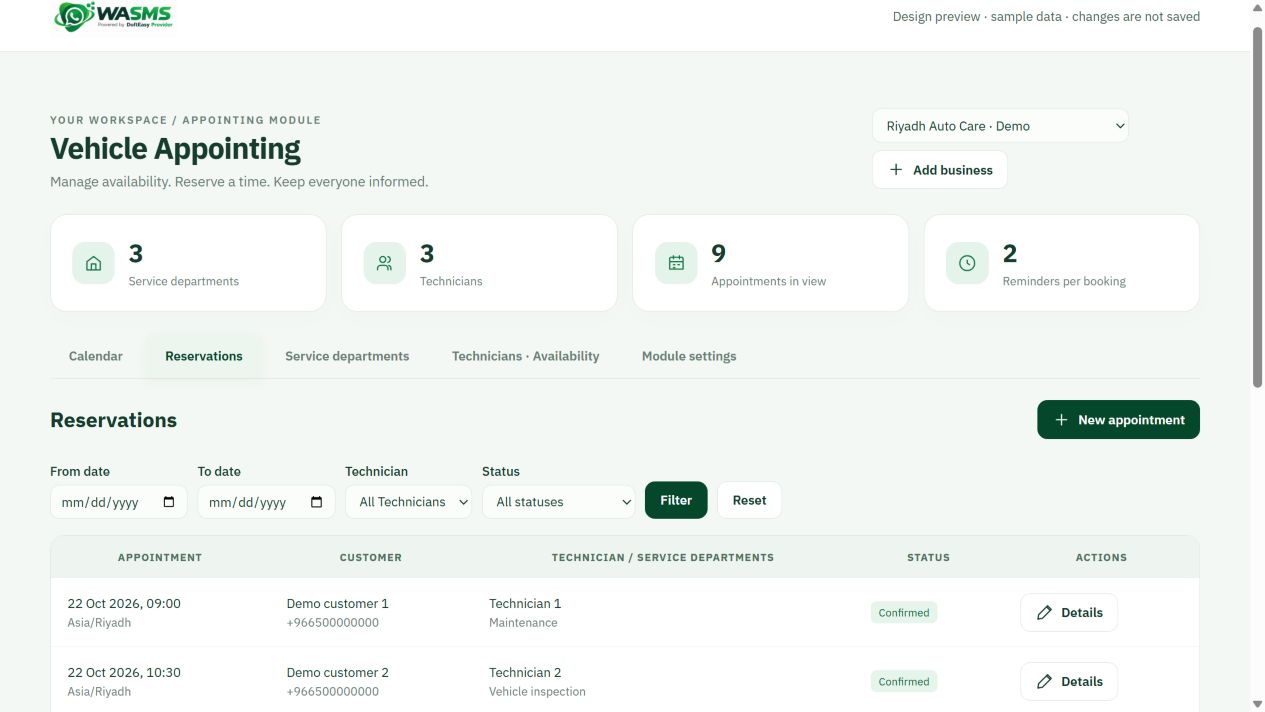
Use Reservations to inspect the customer, specialist, time and booking state. Complete and cancel a test reservation in your own workspace.
Verify the worker and reminder schedule. Only enable real WhatsApp reminders after your own approved test succeeds. No messages were sent in this walkthrough.
01Before you install+
WASMS account add-on, not a CMS ZIP. One-time USD 250 before VAT. Enable it for the customer account through the Store entitlement. End-to-end booking/reminder testing with your own business data is still required.
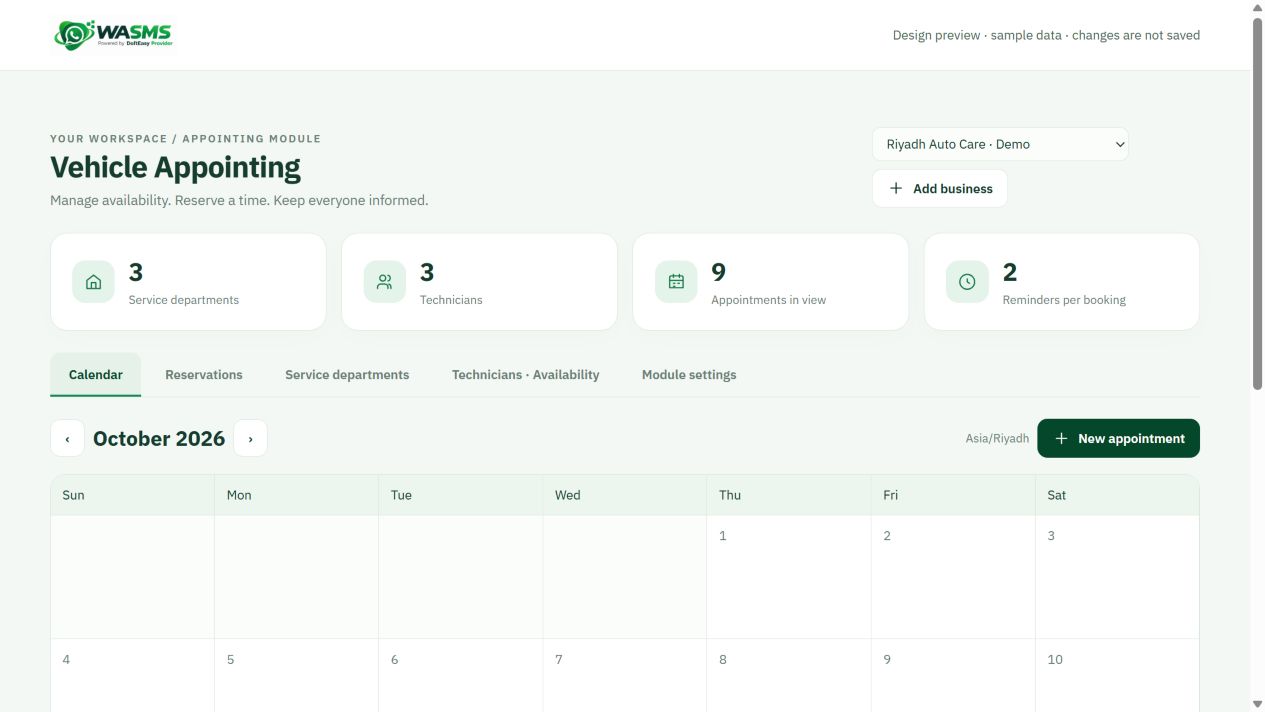
Calendar and appointments
02Install & open your product+
Open your WASMS account → Appointing. Create a property/workspace, select the business category (for example clinic, hospital or vehicle maintenance), and set the name, timezone and connected WhatsApp device. Add departments/services and providers such as doctors or technicians. Define service duration, working hours and unavailable dates before publishing availability.
Business and reminder settings
03Scheduled sending & reminders+
Use the WASMS service scheduler for due reminders. Confirm timezone, reminder offsets and device connection. Keep the business in setup mode until a sample appointment has been checked. Calendar availability must exclude blocked and already booked time slots.
04What to configure & test+
Public booking-page link plus guided WhatsApp booking, property/department/provider availability and reminders. Test create, cancel and reschedule, overlapping requests, timezone boundaries and opt-out before enabling customer reminders.
Departments and services
Specialist availability
05First test & everyday use+
Start on a CMS test installation or a WASMS test workspace. Choose Arabic (RTL) or English (LTR), save one template and confirm its supported merge fields. Check permissions, license/entitlement and the worker heartbeat. Test mode should create no real delivery. When ready, use one recipient you control who has agreed to receive the test. Enable only the needed event and confirm receipt on the phone. Check duplicate events, opt-out and failed credentials before expanding automation.
Review the booking lifecycle
06Troubleshooting & safe updates+
Queued: check the worker, PHP executable, permissions and connection. Accepted: the request was accepted, not proof of phone delivery. Unknown: inspect the original request before retrying. For license errors check the product and canonical site URL. Before updates back up files/database and preserve private configuration and encryption secrets. Disable messaging and pause the worker before rollback; restore the matching files and database together. Do not erase customer data during a routine update. Send support the platform/PHP version and a redacted error, never API keys or OTPs.