
WASMS · Logistics
Install. Connect. Make it yours.
Your Logistics installation and use guide.
A guided look inside.
Six short steps through the actual WASMS interface. English on-screen captions, a full transcript and demonstration data. No narration.
1 minute · English captionsShared plugin screens vary by platform. Native installation steps remain in the written guide. No messages were sent while creating this walkthrough.
English transcript & chapters
Choose or create a logistics workspace. Keep automation paused while you prepare carrier accounts, shipment records and consent settings.
Add your supported carrier credentials and use a sandbox or partner test environment. Verify each connection before enabling scheduled polling.
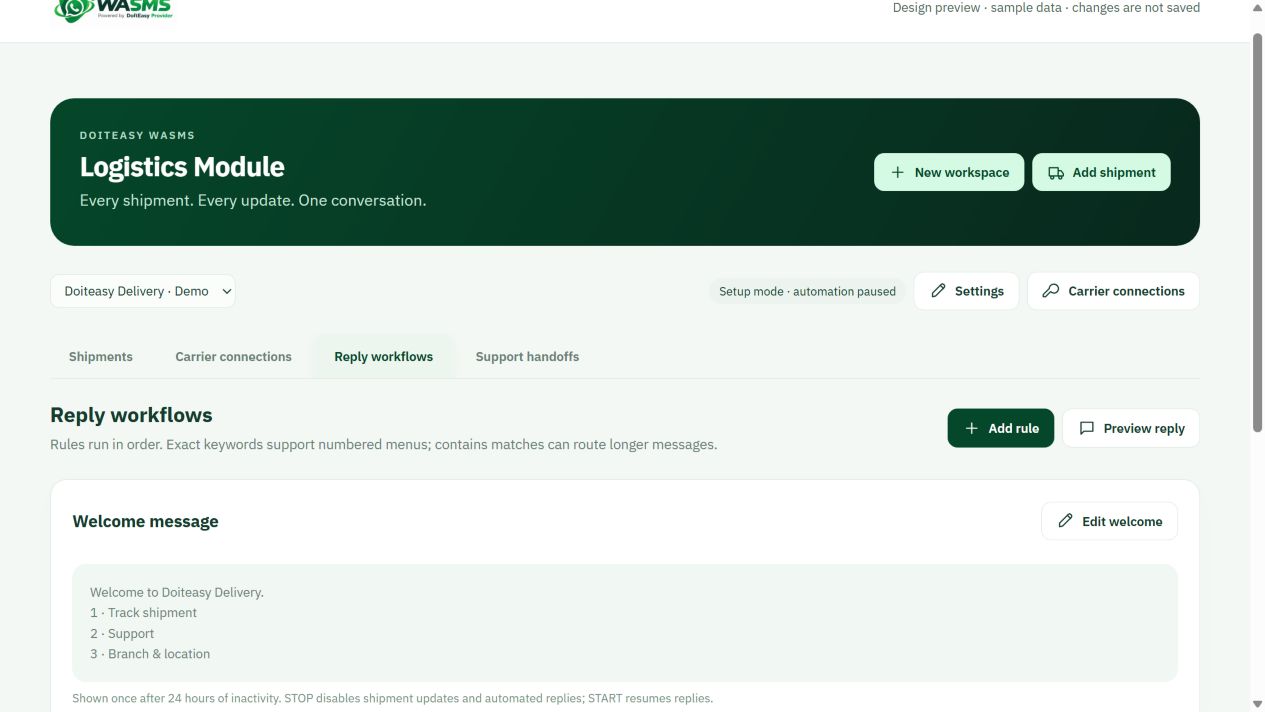
Review the welcome message and ordered reply rules. Test tracking keywords, branch details and consent handling without messaging real customers.
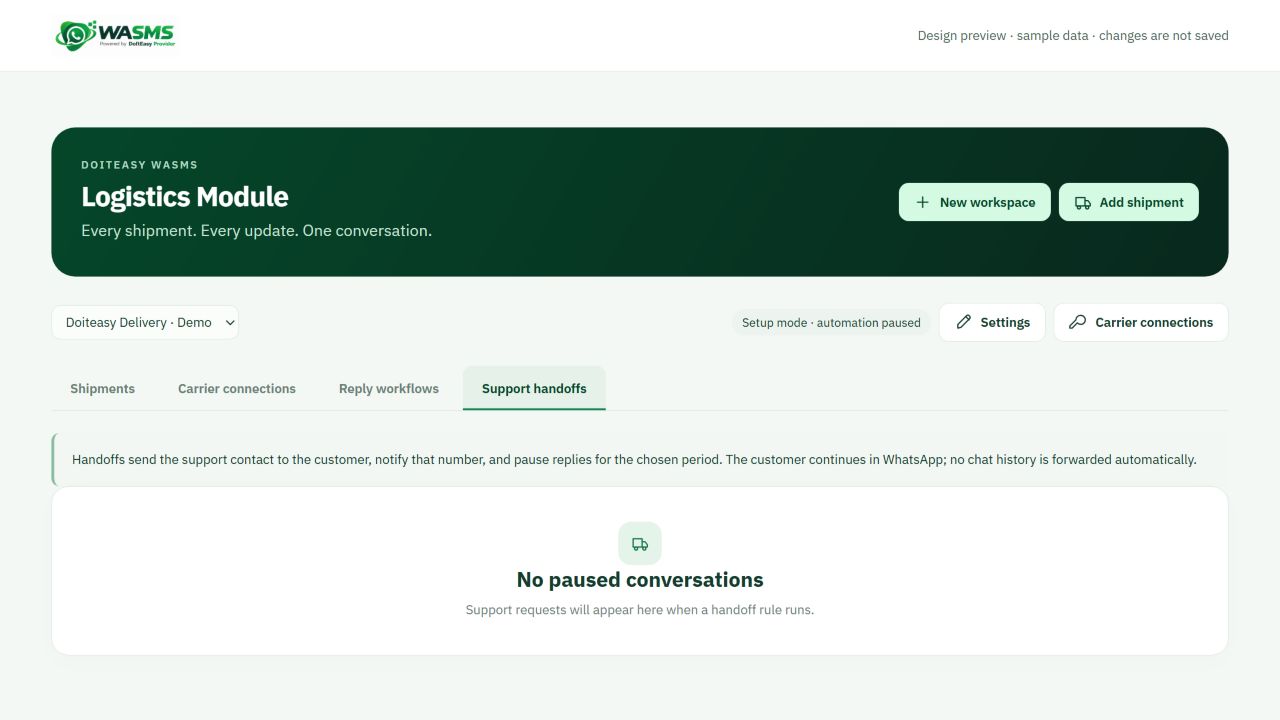
Choose the intended support contact and pause period. Confirm that automation pauses when a conversation is handed to a person.
Check tracking numbers, carrier environment and customer permission. A saved status is not proof that a WhatsApp message reached the phone.
Verify the worker, connection and rules in your test workspace. Enable only the required automation after your approved test. No messages were sent here.
01Before you install+
WASMS account add-on, not a CMS ZIP. One-time USD 250 before VAT. Live carrier tracking requires each customer’s active carrier API account and credentials.
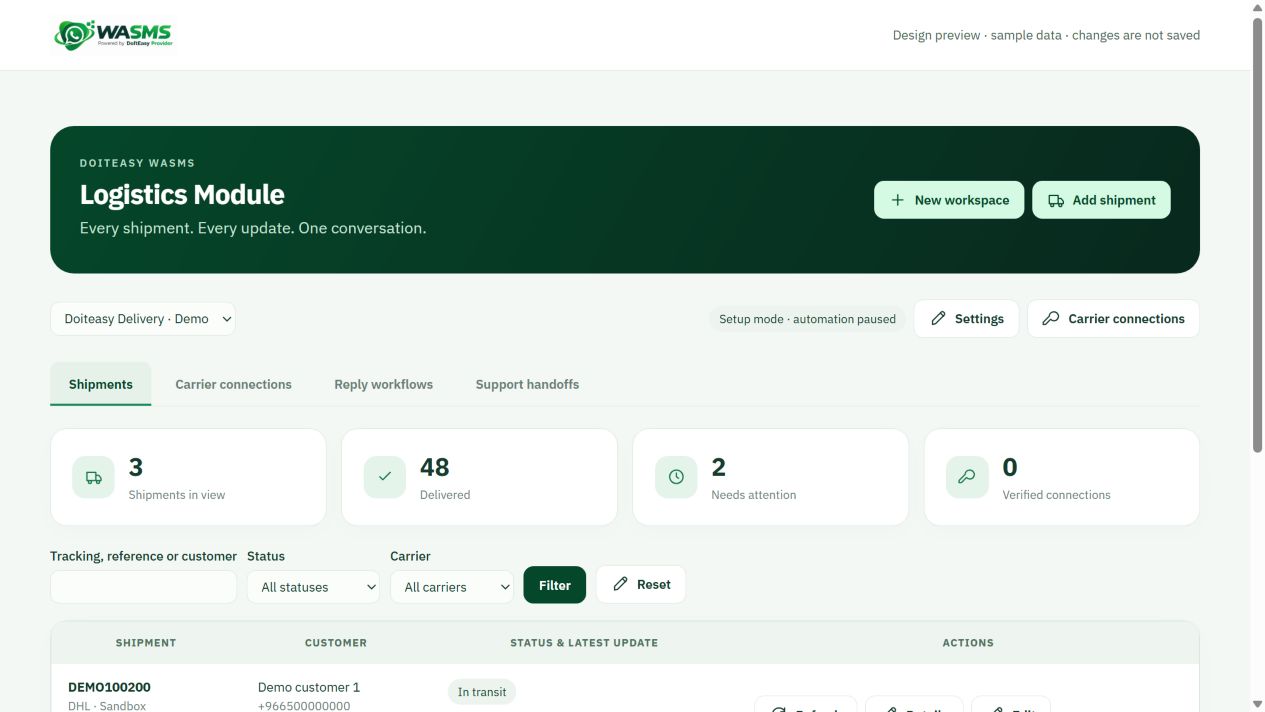
Shipment monitoring
02Install & open your product+
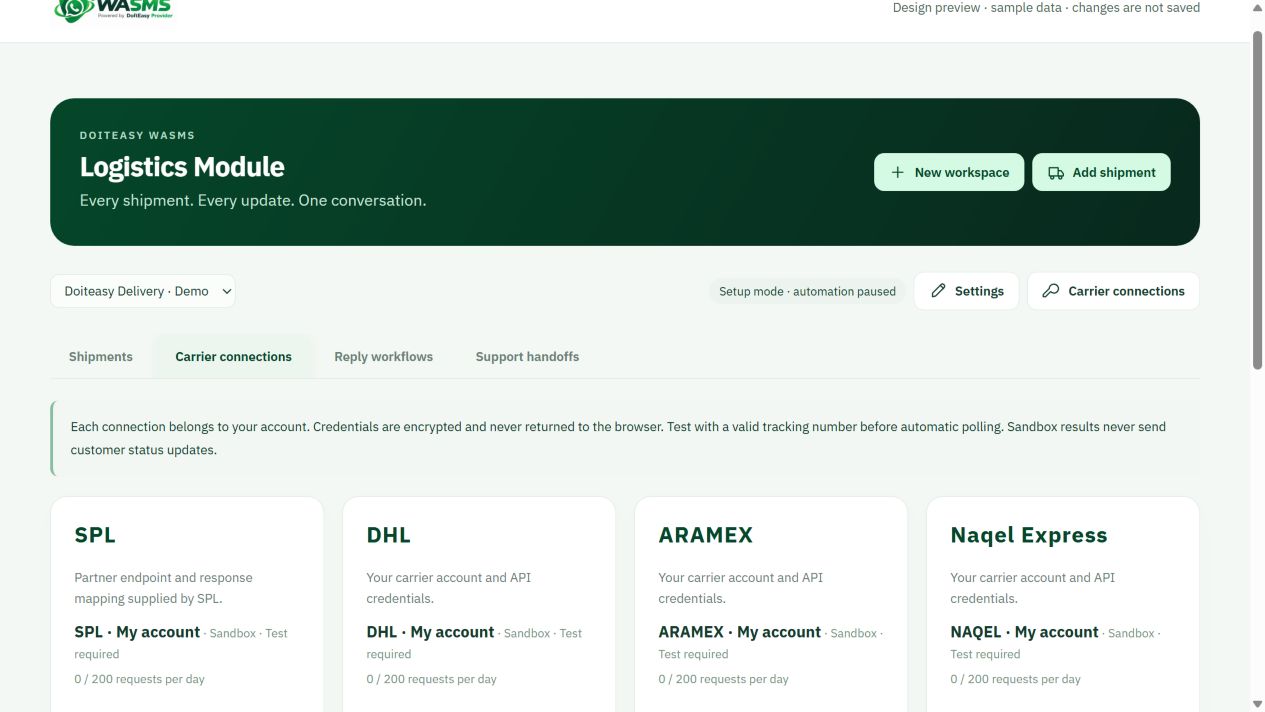
Open WASMS → Logistics → New workspace. Set its name and WhatsApp device. In Carrier connections choose SPL, DHL, Aramex, Naqel Express or FedEx and enter that customer’s keys securely. Use the carrier sandbox where available. Add a shipment with the matching carrier, tracking number and customer phone, then configure the welcome/status/support workflow.
Connect your carrier accounts
03Scheduled sending & reminders+
The WASMS service scheduler processes due tracking updates and notifications. Leave automation paused while connecting carriers. Check the last sync/error, carrier access and rate limits. Enable automation after a known shipment returns the expected status.
04What to configure & test+
Shipment history/status tracking and configurable welcome, auto-reply, location, image, website, phone and support-handoff actions. Status names depend on the carrier. Test duplicate events, delivered shipments, invalid tracking numbers, credential expiry and customer opt-out. Every carrier needs its own live/sandbox validation.
Build reply workflows
05First test & everyday use+
Start on a CMS test installation or a WASMS test workspace. Choose Arabic (RTL) or English (LTR), save one template and confirm its supported merge fields. Check permissions, license/entitlement and the worker heartbeat. Test mode should create no real delivery. When ready, use one recipient you control who has agreed to receive the test. Enable only the needed event and confirm receipt on the phone. Check duplicate events, opt-out and failed credentials before expanding automation.
Support handoffs
06Troubleshooting & safe updates+
Queued: check the worker, PHP executable, permissions and connection. Accepted: the request was accepted, not proof of phone delivery. Unknown: inspect the original request before retrying. For license errors check the product and canonical site URL. Before updates back up files/database and preserve private configuration and encryption secrets. Disable messaging and pause the worker before rollback; restore the matching files and database together. Do not erase customer data during a routine update. Send support the platform/PHP version and a redacted error, never API keys or OTPs.